Site Under Maintenance

Sorry for the inconvenience

Thank You For Visiting.

Showing posts with label Facebook. Show all posts

Tuesday, 23 June 2015

Facebook, Microsoft gear up for Virtual Reality: Is it the next big thing?

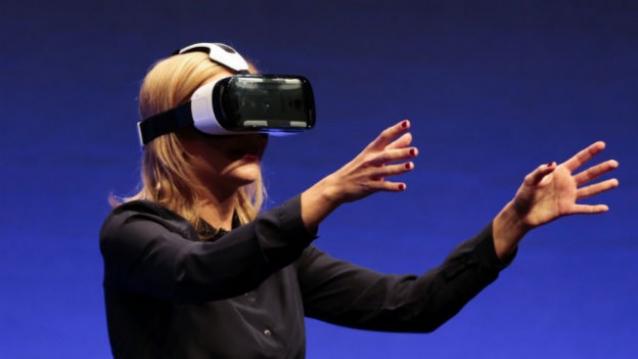
British television presenter Rachel Riley shows a virtual-reality headset called Gear VR. AP

After years of ground work, it seems the battlefield for virtual reality is finally gearing up.
While Google, Samsung and Facebook are racing to be the first to launch their respective products, others like Microsoft have already managed to impress many with the Hololens. After all, virtual reality seems enormous and very promising. Imagine, putting on a pair of goggles or headgear, and being transported into a different world. The man-meets-machines kind, but everything stays within your mind. Now, doesn’t that sound cool?
“Interest in Head Mounted Display devices, which power virtual reality (VR), augmented reality (AR) and other smartglass apps, will be such that, by 2018, the technology behind them will be used in a variety of consumer and business scenarios,” a Gartner report had said.
Image: TheVerge
Going beyond gaming. Image: TheVerge
The report added that HMD devices were more popular in 2014 than at any point in the past. Prior to that HMDs were mainly found in certain apps like industrial design, military training and likewise. Needless to say, Facebook’s acquisition of Oculus in 2014 played a major role in bringing this change.
There is a long history of the development of the technology, but will stylish eyewear ensure broader adoption of the technology. It leaves several such answered questions. Let’s take a look at them, one by one.
Going beyond gaming
The world of virtual reality is synonymous with gaming. “Virtual reality is primarily focused around gaming because it is the most immediate application that can be monetised,” Shiv Putcha Associate Director, Consumer Mobility & AP Telco Strategies, IDC tells us. So, we’ve got technology that is futuristic, but there are not too many use cases that have a clear connect to money. It will need more ROI till people start investing more and more into it. However, the gaming base is a good way to kickstart the technology on the path to becoming mainstream. So, will it go beyond gaming? It is a little early to say if it will go beyond gaming. There are certain used cases, but it many not be really a business-focussed thing in the near future, he adds.
Mobile will drive VR, and vice versa
Today, dedicated hardware is required for virtual reality such as Oculus and so on. It doesn’t connect with a smartphone, tablet or console. In the gaming space, eventually, you can imagine an end-game where a VR headgear takes the place of the console, maybe.
The other possibility is it can be coupled to your device with some other hardware or app. For example, if you are on a headgear and taking notes, you will need a connection with a stylus or or other input mechanism. However, it is also possible that very few may really choose to wear a headgear. It is, therefore, quite likely that all devices may connect to the virtual reality but may not necessarily be wearables.
On the contrary, virtual reality could also drive mobile. It could be the reason for enhancements in processing power, chip capability, and other things that will have an affect once VR becomes mainstream. You smartphone could eventually become a hub for VR and connected devices.
Failed Google Glass: The first lesson?
It took years of groundwork and some interesting products before the smartwatch finally went mainstream. Other wearables such as goggles and glasses, will also follow a similar pattern. Google Glass was a high-profile launch, and its failure is bound to have at least some effect on similar wearables.
The Oculus Rift headset (AFP)
Augmented and Virtual Reality: Not the same thing
The two are way apart. Augmented reality is a mix of virtual reality and real life, allowing developers to create images within apps. Users can interact with both worlds and also distinguish between them. AR apps are already popular in the gaming world, and also otherwise. On the other hand, virtual reality is all about creating a virtual world and it is designed in such a way that people can’t really distinguish between virtual and real. To achieve VR, you usually need to wear a gadget such as glasses or helmet that support the functionality.
Google Glass didn’t get much traction, but Google Glass wasn’t driving virtual reality. So, considering VR is a completely different ball game, we still doubt it would have a great impact. Nevertheless, a successful Google Glass could have made things a little easy.
Android power play
Google is rumoured to be working on its own technology for VR. Now, it won’t be surprising if there is a version of Android for VR, after all its a very flexible OS. So, we’ve seen Android Wear, Android Auto and so why not an optimised version for this space?
One advantage – Google will make it available widely. All hardware manufacturers will have access to it. But it will take time, just like wearables that saw a lot of experimentation. “Eventually you will see new devices that will have an impact on the cost. So, will it be a $50 Android smartphone or a watch anytime soon? Probably not. It will follow a similar path, but a different curve,” explains Putcha.
VirtualReality_NEW
Will it be the next big thing?
Virtual Reality isn’t really the next fad and still has a long way to go. “It will be a few years before virtual reality becomes mainstream. It is just the beginning of the pretty long cycle of development and commercialisation of virtual reality. It isn’t a hype-driven feature that will go away, but rather a long-term thing,” Putcha points out.
The companion technologies are not quite there. To initiate or activate the device you need other things too including connectivity in usable form factor. People may look for other things that you see in smartphones and tablets, and not just the core virtual reality technology. So, unless all the different features don’t come together, it will struggle to go mainstream. You may not see a Google Glass kind-of form factor in a very small time, and still need to put on a sizeable headgear.
Now, even if the device capability and every other creased aspect is ironed out, the connectivity or bandwidth will play a crucial role. The VR device isn’t wired to your laptop, mobile or some other power source. It isn’t just about VR technology to make it a viable consumer proposition.
If it is aimed only at the enterprise segment, then customers may be willing to make certain tradeoffs like the cool quotient or form factor, but in the mainstream consumer market experience matters a great deal. Perhaps virtual reality is a big thing, it’s just not necessarily the next big thing.

Sunday, 14 June 2015

Facebook Opening New Artificial Intelligence Research Center in Paris


Facebook comes with a specific end goal to take a shot at driven modern ventures. 

The new group will work intently with existing Facebook AI Research (FAIR) groups in Menlo Park and New York on images acknowledgment, live translating tools, speech recognition and more.

Facebook CEO and Founder Mark Zuckerberg post in his page,

"I’m excited for the opening of Facebook’s first international research center for artificial intelligence in Paris.

One of our long term initiatives is to build a new generation of internet services that are more intuitive and can more easily connect you with the things you care about by understanding the meaning of voice, text, images, videos and other information.

Our new Paris team will help lead our research in machine learning. We'll continue sharing all our insights openly with the AI community through publications, open source and collaboration with other researchers. We’ll also be investing in top scientific institutions and have a collaborative agreement in place with INRIA. This opens up new joint study opportunities for talented research professionals, PhD students, and postdoctoral researchers.

France already has one of the strongest AI research communities in the world, so we think this is the ideal home for our new team. I’m excited for us to be taking another step toward the future of computing and connecting the world."

Facebook said in Blog,

"Every day, the world generates more and more information — text, pictures, videos and more. To be useful, Facebook’s apps and services need to help you sort through all this information so you can better understand the world around you and more effectively communicate with the people who are important to you. For a little more than a year we’ve been building a program — Facebook AI Research (FAIR) — with this goal in mind.

Today we announced that we’re expanding those efforts with a new AI research team in Paris. Like the existing FAIR teams in Menlo Park and New York, the Paris team will work on ambitious long-term research projects in image recognition, natural language processing, speech recognition, and the kinds of physical and logical infrastructure required to run these AI systems. It’s our hope that this research will ultimately help us make services like News Feed, photos and search even better and enable an entirely new set of ways to connect and share.

We chose Paris for this expansion because France is home to some of the best researchers in the world. We think the FAIR Paris team will bring valuable expertise and new perspectives to our work, and we plan to work openly with and invest in the AI research community in France, the EU, and beyond as we strive to make meaningful progress in these fields. We have a collaborative agreement in place with INRIA, a leading research institute in Paris which opens up new joint study opportunities for talented research professionals, PhD students, and postdoctoral researchers. We believe this open model ultimately spurs more innovation, encourages collaboration and mutual review, and helps us all move faster.

Our work in AI research is still relatively early. But we’ve built a terrific team and have already made some encouraging progress, and we’re excited to see where this work takes us and what it will allow us to build for the people we serve."

Monday, 1 June 2015

This Facebook Hack Allows You to Track Your Friends On Map

This Facebook Hack Allows you to Track Your Friends via Messenger
Remember the magical Marauder’s Map from the Harry Potter books that reveal the whereabouts of characters as they roam classrooms and the halls of Hogwarts school?

A student developer from Cambridge has created a Chrome extension that works similar and also named it Marauder’s Map.

The extension that allows you to watch every footstep of your Facebook friends by grabbing location data from Facebook Messenger and rapidly plotting your friends’ locations on a map.

We all are aware that Facebook shares our location data with our friends, however, what we probably aren’t aware of the accuracy of that data and easiness of extracting that data from the messaging service.


LOCATION SHARING AND MAPPING...

Facebook usually encourages Messenger users to share their location by enabling location sharing by default when users install iOS or Android app.

Software developer Aran Khanna’s extension dubbed Marauder’s Map, loads the map in Messenger’s Web interface and fetches the data from messages sent over Facebook Messenger with location sharing enabled.

If you are in doubt that this extension could easily track all your location data, then you are wrong. The extension will able to map your location only for those instances when you have had a conversation with your friends over Messenger with location enabled.

BUT, IT'S YOUR FAULT...

The extension will not be able to get your location in between these instances when you have not used Messenger at all.

It’s not completely Facebook's fault because the service is only providing you a feature to share your locations with your friends, neither your friends (maybe you as well) are necessarily giving up their locations unknowingly.

But, it is most likely that your friends are not realizing how accurate this location data is and how easily this information can be used. They just click through to get chatting with their friends.

If you don’t want to share your location with your friends and keep your location data private, then you can disable location sharing feature by tapping the arrow icon in your Messenger, or simply go into the settings of your phone and disable Messenger’s location access altogether.

Source www.TheHackerNews.com

Saturday, 30 May 2015

Facebook now supports Animated GIFs – Start sharing funny GIFs

Facebook has finally confirmed that it supports animated GIFs in the Facebook News Feed. As this latest update is still rolling out, the news regarding the added functionality may not reach everyone  immediately. Facebook has taken a step ahead by supporting Animated GIFs on Facebook News Feed. The tremendous move indicates a substantial change in the direction for the enrichment of the Social networking site, Facebook.


Earlier, Facebook decided not to support GIFs as it was in a conscious that claiming to do so may affect the News Feed and would make it very hectic. Facebook was under an impression that if GIFs were supported then it would clutter that leads the site to a low-quality memes. Now, Facebook has come out of that notion and officially confirmed that it will support Animated GIFs.
Welcome to my profile GIF image

How to post animated GIFs on Facebook News Feed?

Facebook officially confirms to support animated GIFs on the Facebook News Feed. Users can update their status by sharing animated GIFs on Facebook. This new feature can be utilized in the best way by following the simple steps:
  • Initially, the user can copy a link of particular desired animated GIF image that is hosted on an external website like Giphy, Tumblr, Imgur, etc.
  • The Facebook user must paste that GIF link in the status update box and then click on “publish” button.
  • After posting on your News Feed, the GIF will be animated inline.
Facebook GIFs
  • GIFs that are posted on Facebook have an auto-play option where the user can modify the current video audio settings.
  • It depends on the users’ choice whether to enable or disable the auto-play option on Facebook.
  • If the auto-play option is enabled, then the GIF will run or play automatically. If the user disables the auto-play option, then every time the user has to tap or click on GIF which is indicated in a circle on the image.

Facebook – Still working on GIFs

When we checked how these GIFs are working when posted over the News Feed page in the Facebook native mobile application, they were automatically animated. But, this auto-play was not enabled on the mobile website. It is still vague whether Facebook is completely supporting Animated GIFs or else this issue is related to a deferred rollout.
GIFs supported by facebook
Facebook has not yet revealed all the technical details about the GIF support, including its plans for mobile support, Pages support and some other issues. Entire information regarding the plans of Facebook will be updated very soon when the company unveils the facts. Facebook’s spokesperson has given the following statement:
“We’re rolling out support for animated GIFs in News Feed. This is so you can share more fun, expressive things with your friends on Facebook.”

Funny GIFs

funny GIF Images
funny cat with a guitar
Facebook funny GIFs

funny GIF image

Get more updates regarding the animated GIFs supported by Facebook and how to best utilize this application on your profile and share it on News Feed with your friends.

Tuesday, 27 January 2015

Breaking News Facebook and Instagram Are Down


Facebook experienced downtime from shortly after 08:00 on Tuesday 27 January, for which the cause remains unknown. Instagram, which is owned by Facebook, also experienced downtime.

Many Facebook users complained about the downtime on platforms like Twitter, using the hashtag #facebookdown.
facebook_is_down.jpg

Engadget reported that other services were also being affected, including AIM, Tinder and Hipchat.

According to DownDetector, which detects when services go down or have outages, Facebook was “having issues since 8:18 AM”.
View image on Twitter


Instagram tweeted from its official account, saying it was aware of the problem, describing it as an “outage”.

“We’re aware of an outage affecting Instagram and are working on a fix. Thank you for your patience,” it said.

Hipchat and AIM are among others suffering from this issue too.
The unofficial rules of online publishing probably mean that Facebook will come back online right after I publish this post, but — in the event that this doesn’t happen — why turn not to another social network, open a book, strike up a conversation with someone in person, go outside (unless you are in New York)… etc, you get the idea.
Meanwhile, Facebook is on the case working on a fix, of course.

Sunday, 28 December 2014

How to see who is online in Facebook when you are offline!


Sometimes we don't want to chat with friends in Facebook and therefore turn offs the chat ..
But we are desperate to know who all are online at present in Facebook but don't want to turn on chat again!!!
So here is a trick for all of you which may came handy..The trick is simple and doesn't require much time!

So lets get started.


Note:The first step is to go offline on facebook chat. If you won’t go offline there’s no use of this app.

Step 1:

In the facebook search box type Online Now and press enter.
online now

Step 2:

Wait for the page to load it may take upto a minute to load.If the page don't loads then refresh the page, so don't worry just relax.
online friends


Step 3: 

OMG there you got the list of friends who all online!

Subscribe to get more interesting tricks and tips in your inbox!

Monday, 15 December 2014

Delete Facebook Account Permanently Without Deactivating.


Many People are now just Fed Up of Facebook as they think it is just a Waste of time for them, or many other due to the Security and Privacy related problem. But we personally don’t think that it can cause Safety or Privacy issue, as if the proper steps are been followed like our earlier Post on How to Increase Facebook Timeline Privacy. 

But Yes, we agree that it must Waste your Time and can add worries to your Daily Work Routine. 

So if you want to just get away from Facebook and want to Delete a Facebook Account Permanently without Deactivating it, then you are at the Right Place, as here we will tell you to Permanently Delete your Facebook Account without just Deactivating it. 
Difference between Deleting and Deactivating Facebook Account ? 

Deactivating Facebook Account means that Your Profile ( Timeline ) disappears from the Facebook Service immediately. 

People on Facebook will not be able to search for You. Some Information, like messages you Sent, may still be visible to others. Facebook saves Your Profile (Timeline ) Information ( like Friends, Photos, Interests, etc. ), just in case You want to Go back to Facebook at some point. 

If you choose to Reactivate Your Facebook Account in future, the information on Your Profile ( Timeline ) will be there when you Go back.


Permanently Deleting Your Facebook Account means that You will not be able to Regain access to your Facebook Account again. Most Personally Identifiable Information associated with it would be Removed from Facebook’s Database. This includes Information like Your Email Address, Mailing Address, and IM Screen Name. Some Personally Identifiable Information may Remain, such as Your Name if you sent a message to someone else. Copies of some material ( Photos, Notes, etc. ) may remain in Facebook Servers for Technical Reasons, but this material would disassociated from any Personal Identifiers and Completely Inaccessible to other People using Facebook. 

Now you have learned about difference between Deactivating and Deleting the Facebook Account. If you still want to Delete your Facebook Account then follow the Procedure as given below.

1) Go to Facebook Account Deletion Page.  


2) Now You will be asked to Enter Your Facebook Account Password and a Couple of more Information, after which you will get a Notification saying that Your Account has been Deactivated and will be Deleted after 14 days. 


3) Now Facebook provides You a Grace Period. Within these 14 days if You want to get back to Facebook again, then you simply have to Cancel your Facebook Account Deletion Request and You will be back.


 So this is How to Permanently Delete a Facebook Account without Deactivating.

Sunday, 14 December 2014

How To Get Notification Everytime Someone Unfriends you on Facebook.

Users on Facebook are increasing Day by Day. We all tend to Spend Time on Facebook. We like to be friends with as many people as can. On an Avg Each user have 100-150 People in their Friend list. This number may be quite low, because many people now a days likes to be friend with unknown people too.

Though There is a limit of having 5.000 Friends on Facebook for each user. Not many people would reach this milestone. Facebook Notifies you when you send friend request to someone and they accept it. They also notifies you if you have any New Friend request from others but 1 thing that facebook don't do is that you will not be able to see Who Unfriended you and when.


It Remains Mystery, You will not know until one day you find that person in your friendlist by his/her name. But Thanks to Extension Developers we have Chrome Extension that Notifies you if someone Unfriends you. Let us see some steps so that next time if someone removes you from thier friend list you will get a notification.

Get Notified when Someone Unfriends You


Step 1: Download and Install Unfriend Notify on Facebook Free Extension in Chrome.


Step 2: Simply Click Here to go to the Extension in Chrome Webstore and Click on Free or Add to Chrome Button then click Add in the Popup.


Step 3: The Extension will now Start Downloading and you will the then see its been installed on your Chrome Browser. A new page will open, there just click on Activate.


Step 4: Now to see if the extension is been added successfully, go to your Timeline by clicking on your Name on your facebook. Click on Friends, You will see a new tab with name "Lost Friends" added there.


That's it Folks, I Recently heard of this thing and tried it and so thought of to share it on this blog with my readers...

Though i am Waiting for any Notification that So and so person has unfriended you., Try it and let us know if you like it and if it works for you in below Comment box. Your Input Will Be appreciated.

How to automate your Facebook and Twitter posts with Buffer.


So you've got "a friend" who is a social media addict. They check in to every location, Instagram every meal, even use "hashtag" in conversation. Well, Buffer can help them keep their social media feeds flowing with content without chaining them to a phone or laptop. 
The way Buffer works is simple: Instead of posting directly to your social media service, you create a post in Buffer that's added to a queue and published according to a schedule you specify. That means you can prepare those funny cat videos all at once but post them to your profiles over time so you don't overwhelm your friends and followers with cuddly cuteness. And you can have a real life, as well.
Buffer is super easy to use, and a basic account is free, so let’s get started.

Setting up Buffer

Once you sign up with Buffer, you can start adding social media accounts. If you joined by logging in with your Facebook, LinkedIn, or Twitter credentials, that account will be automatically added. Click Accounts and the appropriate button underneath the logo of each additional service you’d like to add.
buffer social media accounts


You can only add one social media account type with the free Buffer plan. The “Awesome” plan lets you add up to 10 social profiles.
The free Buffer account allows you to add one account of each type: a Facebook group, page, or profile; a Twitter profile; a LinkedIn profile or page; a Google+ page (Profiles aren’t supported due to limitations of the Google+ API.), and an App.net account.

Using the Buffer queue

To add a post, select an account in the left column and click Content. A text box will appear in the center column. Any posts already in your queue will appear in order, with the post that’s scheduled to be published next at the top.
Enter the text for your new post in the text box. You can also add an image by clicking the camera icon in the lower-left corner of the box.

buffer queue


The Buffer queue has a simple interface and will shorten pasted links automatically.
To add a link, paste it into the text box. By default, the link is shortened using Buffer’s buff.ly service, but you can opt to use bit.ly, j.mp or no shortener at all by clicking SettingsLink Shortening.
If you want the post to be published to more than one account, click the icon corresponding to each additional account in the upper-left of the text box. 

When you’re finished composing your post, click Add to Queue. Posts in your Buffer queue will be posted one at a time according to your schedule. (I'll show you how to set that further down.)
There are also a few ways to have a more time-sensitive post jump the queue. For these, click the down arrow to the right of the Add to Buffer button, and you’ll get a list of three other posting options.
Clicking Share Next will place the post at the front of the Buffer queue. This is useful if you don’t want to share the post immediately but want to prioritize it over your other queued posts.
Clicking Share Now does exactly what it says: It shares the post without regard to the queue. While this doesn’t seem immediately useful, this option makes Buffer a convenient way to cross-post to different social media sites at once. Gone are the days of posting an update to Twitter, Facebook, and LinkedIn separately, on different apps.
By clicking the last option, Schedule Post, you can set individual posts to publish at a specific time. Scheduled posts don't affect other posts in the queue.
Once content is added to your queue, you can re-order your posts as needed. Hover over the post icon (a picture for images or a chain for links) and it will change to a move icon. Click this and drag and drop the post where you want it. You can even copy posts to another account’s queue by dragging and dropping it over the intended account in the left column.

All according to schedule

You can set different posting schedules for each account queue in Buffer. To do this, click on the account you want to edit and click Schedule.

buffer timezone
Make sure that you’re using the proper timezone on your schedule page for each profile.
The first thing you want to do is set the timezone for the account. Type in the name of your city (or the closest big city in your timezone), and select it from the list of suggestions that appear below the text box.
In the middle of the page, you’ll see the posting schedule. Each profile gets one schedule, and if you upgrade to a paid account, you’ll be able to add additional schedules for each profile. This allows you to have different schedules on weekends or other days. For example, if your Twitter account posts hourly on weekdays, you can set a separate schedule to post every four hours on Saturday and Sunday.

buffer schedule


You can set Buffer to post at any time, day or night. The more post times you add, the more content you’ll have to add to keep your queue full.
Posting times are editable within a minute of precision, so if you want to post at 4:37 p.m. on Wednesday afternoon, no problem. 

Use the Chrome and Firefox extensions to add to your queue

Buffer’s Chrome and Firefox extensions really let the app shine and make Buffer indispensable for those late-night browsing sessions when you want to share everything you find. 
The Buffer extension offers several ways to post to your queue directly from websites. You can post highlighted text, images, and entire pages to an account's queue in just a couple of clicks.

Highlighted text

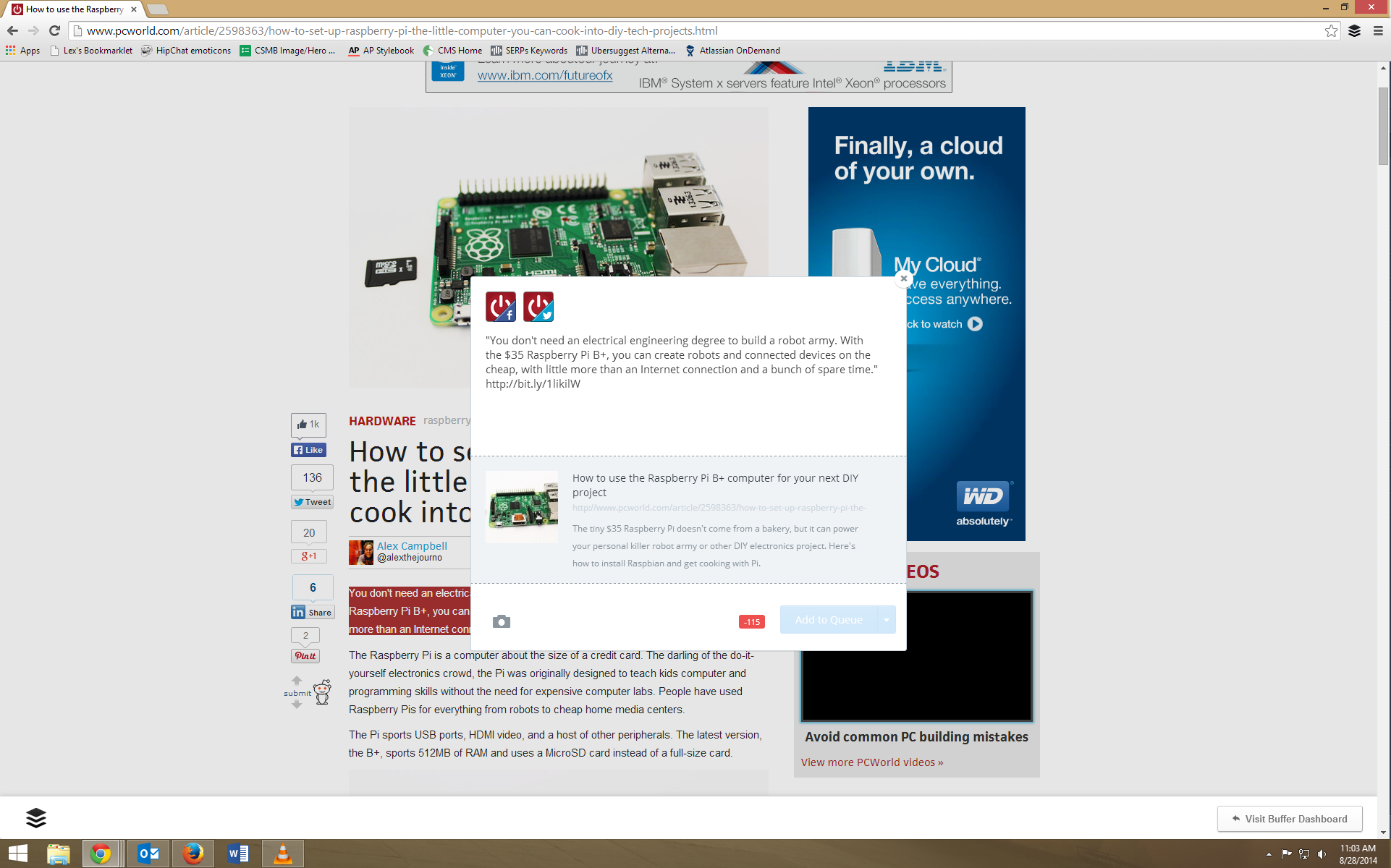
To use the highlighted text feature, select the text you’d like to quote in your post, right click, and select Buffer Selected Text.
buffer highlighted text


Posting to your Buffer queue from highlighted text makes quoting extremely easy. Just watch that character count for your Twitter accounts!
A text area like the one on the Buffer website will appear in a pop-up dialog with the selected text already added to the text box in quotes. Buffer will also add the shortened URL for the web page from which you quoted.
buffer highlighted text dialog


Highlighted text will be added to the body of your Buffer post.
This is really useful for quoting parts of articles in tweets, provided you watch your character count.

Adding images

buffer share image button
Buffer makes it easy to share images with the Share Image button.
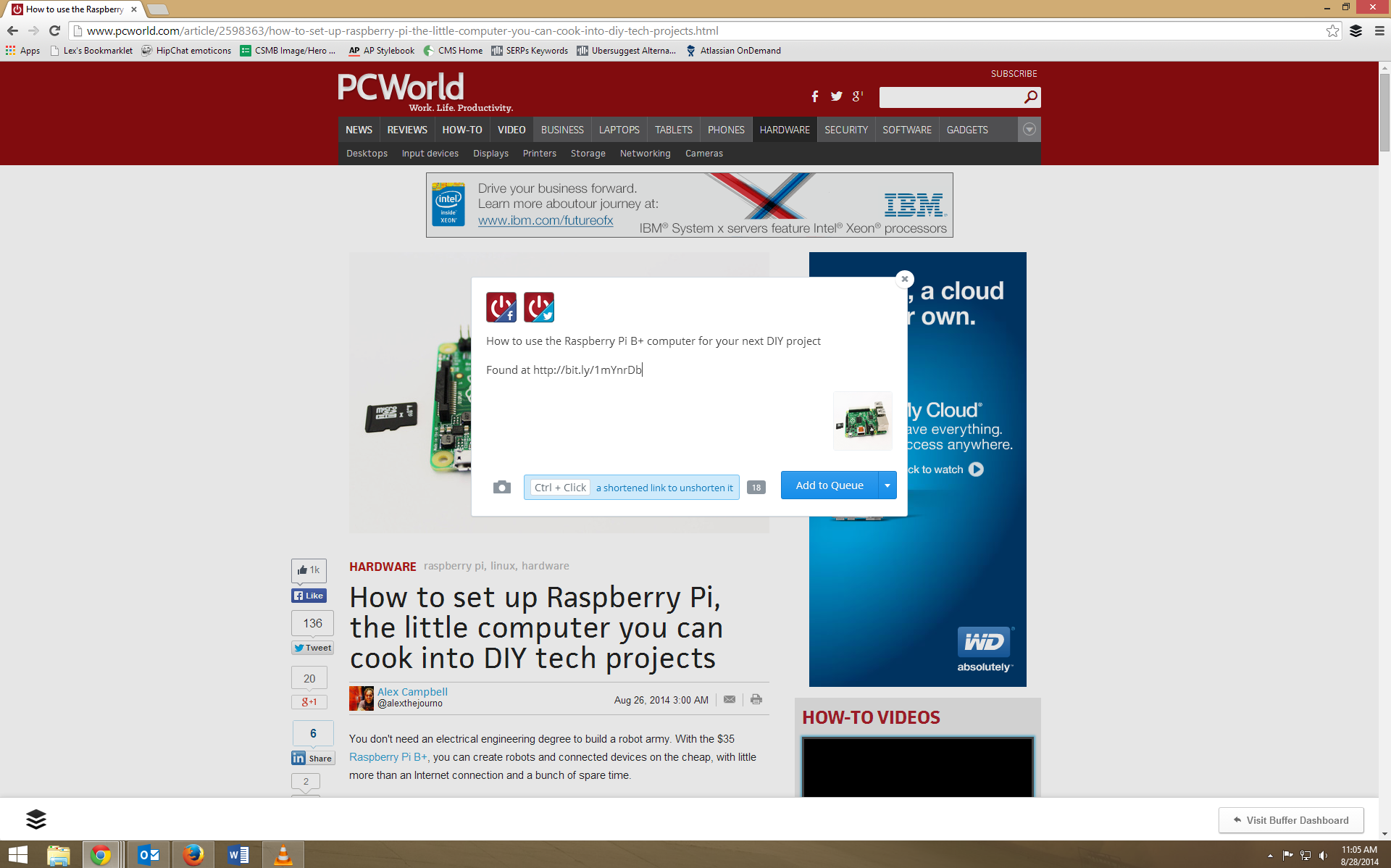
The Buffer Chrome extension makes it just as easy to add images to your posts. When you mouse over an image, a blue ‘Share Image’ button will appear. Click on it, and a dialog box will pop up. The image will already be added to the post, along with the text from the page’s title attribute and a note about where the image was found (using a shortened URL, of course).

buffer image


When adding an image to your queue, Buffer automatically accounts for the characters needed for the image link in Twitter posts.

Sharing a link

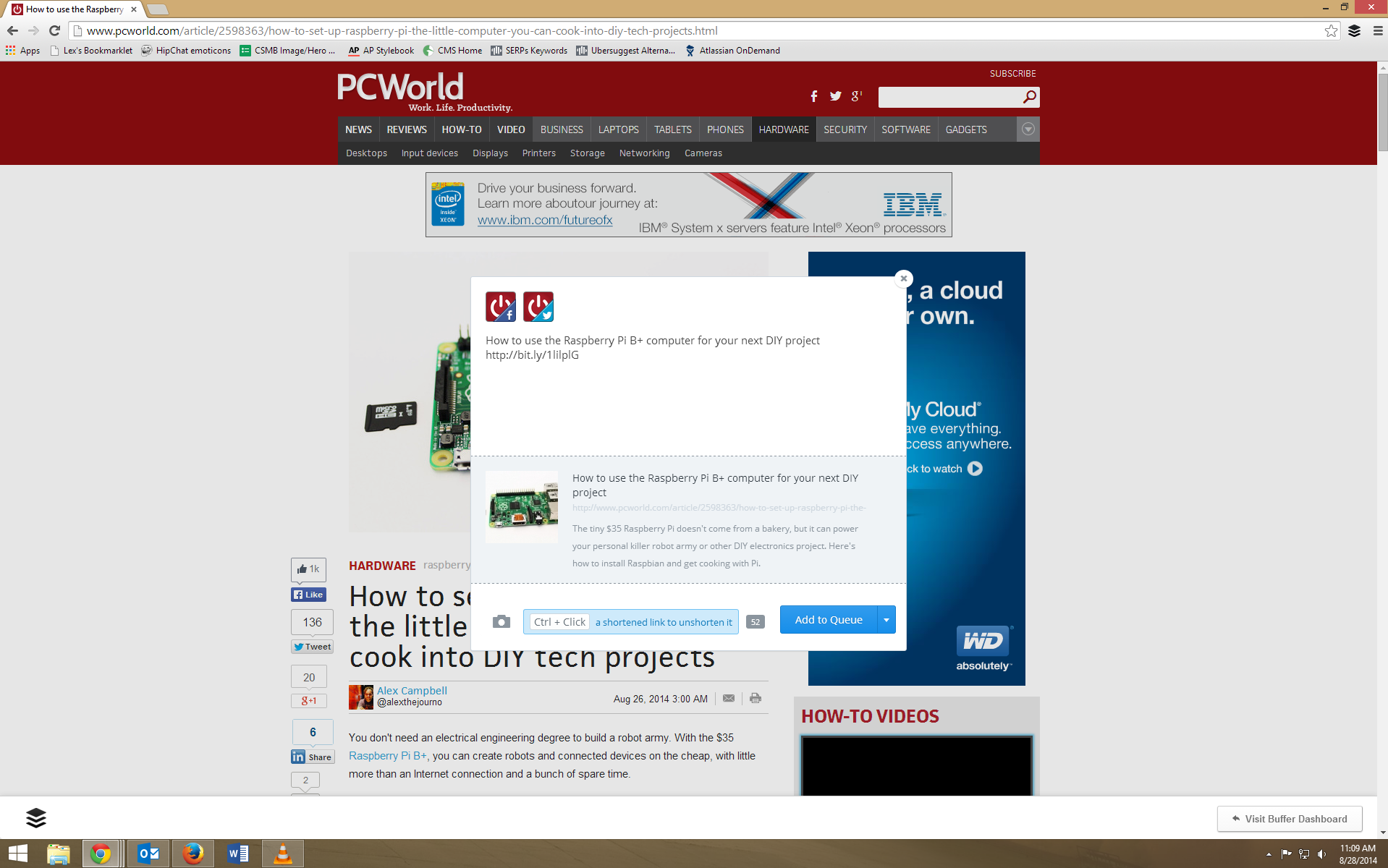
If you want to share an entire web page, click on the Buffer icon in the upper-right corner of Chrome. The dialog will pop up prefilled with the title text and a shortened URL.
The post will also have an image (if the webpage has one) and link summary attached for a Facebook link post. When you hover over the image to the left of the summary, left and right arrows will appear, letting you select the image from the page you’d like to use in the Facebook link.

buffer page


Adding a link post to Buffer is not unlike adding one to Facebook.
Note: If you click the camera icon to add an image, the post will change into an image post, and you’ll lose the link preview. If you really want to have a link post, cancel out by clicking the X in the upper-right corner of the dialog and start over again.
Posting from within social accounts
buffer facebook link
You can add Facebook posts to your Buffer queue using the link right next to the Share link.
The really cool part of Buffer is that you can add posts to your queue from within Twitter or Facebook.
In Facebook, you can add a post to your queue by clicking the Buffer link right next to the Like, Comment and Share links. There's one drawback to using this feature, though: Shared posts won’t show they were shared from someone else and will appear to originate from you. 
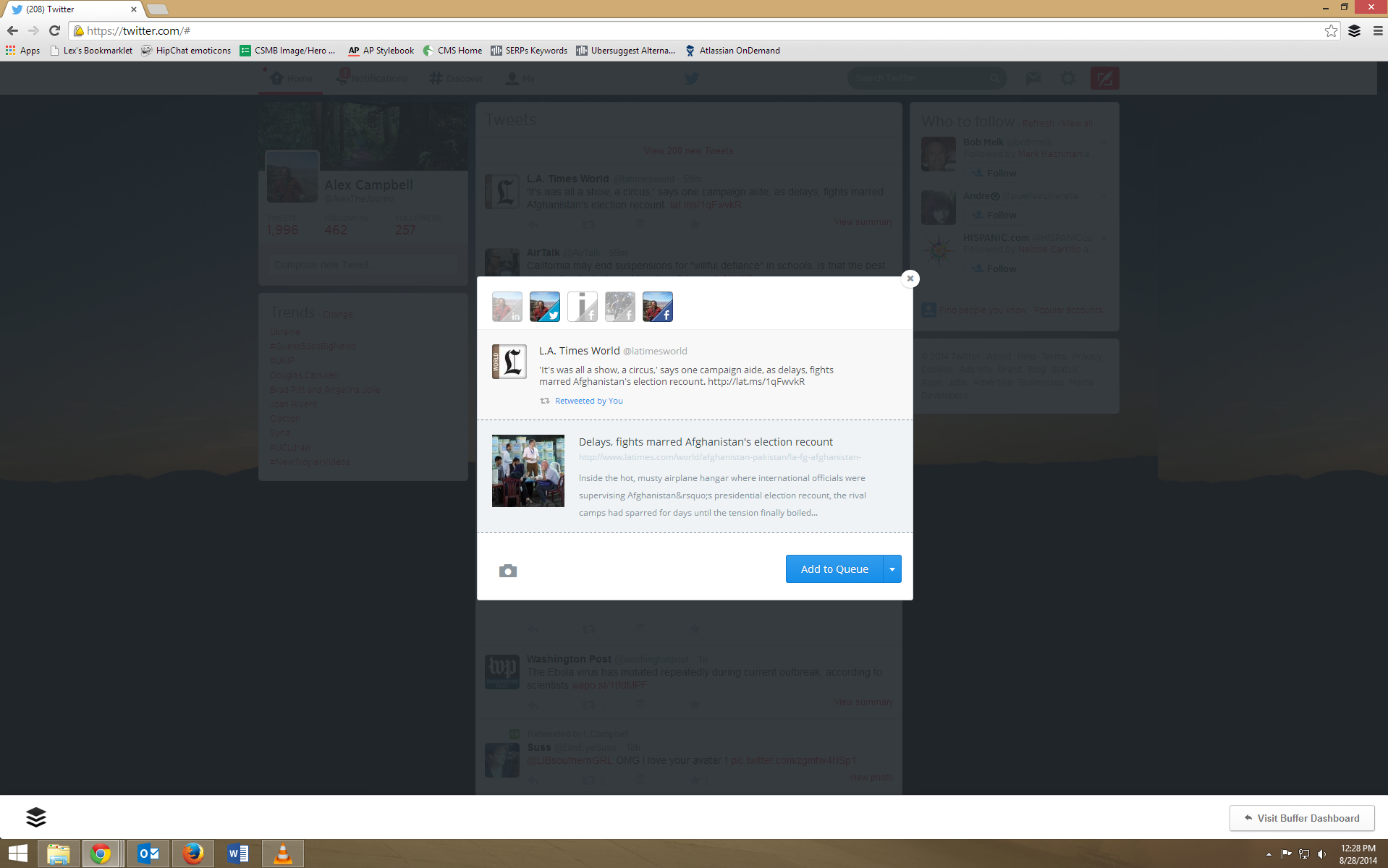
buffer retweet button
In Twitter, you can add a retweet to your queue by clicking the retweet button and clicking Buffer Retweet in the dialog that opens. Just remember these will appear as embedded tweets when they are posted to Facebook.
buffer retweet


Buffering retweets can space out your tweets and avoid retweet spam.

Time hacking with Buffer

Even if my queue is empty, I still use Buffer to share content to several social media accounts at once using the Share Now option. That alone can save me time copying, pasting, and editing text.
If you’re a blogger and you publish several blogs in a short span of time, you can easily spread out your social promotion of those posts over the week. If you take a vacation, you can add old posts to you queue to keep your social media accounts active and drive traffic even while you’re away.
Once you've mastered the web-based application, you can install the iOS and Android apps and post photos or links on the go.
There are plenty of other uses for Buffer, and once you get used to it, you’ll probably wonder how you ever shared content any other way.
Join Our Newsletter